- 24 April 2026
- updated 7 July 2026
- in WordPress Plugins
- 2038
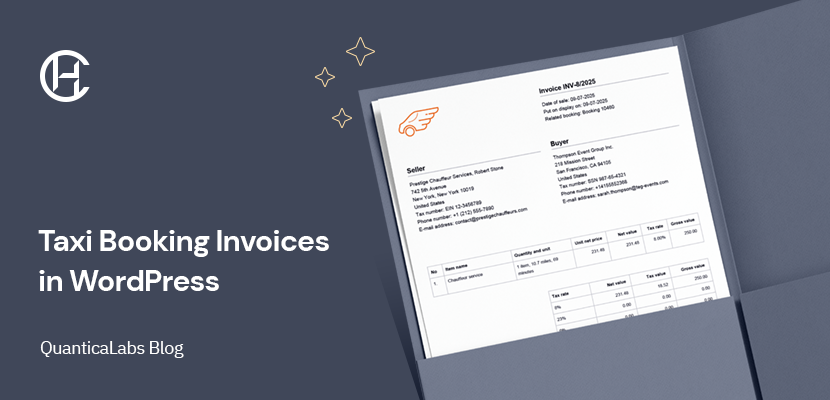
If you are using WordPress to manage taxi or chauffeur bookings, generating invoices manually is one of the first workflows that starts to feel inefficient. The booking already contains the client’s details, service information, pricing, taxes, and route-related data, yet many businesses still prepare invoices manually or use separate tools.
This creates unnecessary extra work and increases the risk of mistakes. A better approach is to generate invoices directly from the booking data you already have. That is exactly where the Invoices Add-on for the Chauffeur Taxi Booking System for WordPress fits in.
It extends the main plugin with automated and manual invoice handling, allowing you to create PDF invoices, send them to customers, and keep invoicing as part of the same booking workflow instead of treating it as a separate task.
A booking system handles reservations, pricing, and customer data, but without invoicing, the workflow is still incomplete. After each booking, you still need to generate a document, send it to the client, and keep records for accounting.
What’s missing is the final step that turns a booking into a complete transaction. Invoicing should be part of the same process, not something handled separately after the fact. When invoice generation is integrated into the booking flow, everything becomes more structured and predictable:
This is the model implemented by the Invoices Add-on working together with the Chauffeur Taxi Booking System for WordPress, where invoicing is no longer a separate task, but part of the same process that handles bookings.
Instead of generating invoices manually after each booking, invoicing can be directly connected to booking events. This means invoices are created automatically based on booking events, without any additional steps. The key element here is the booking status. Each booking goes through different stages, such as new, accepted, or completed. These stages can be used as triggers to generate and send invoices automatically.
For example, you can define a simple rule:
This approach removes the need to monitor bookings manually. The system reacts to changes and handles invoicing in the background. At the same time, automation does not remove control. Invoices can still be generated or sent manually from the booking panel whenever needed, which makes the system flexible enough for different business scenarios.
To better understand how this works in practice, let’s look at a few typical configurations based on real booking scenarios.
Example 1: Invoice after payment
When the booking status changes to Processing (accepted), the system automatically sends a notification to the client with the invoice attached as a PDF. This means the invoice is issued only after the payment is completed.
Example 2: Invoice after service completion
If you prefer to issue invoices after the ride is completed, you can assign the process to the Completed (finished) status. Once the booking reaches this stage, the client receives the invoice automatically.
Example 3: Invoice on booking creation
For prepayment scenarios, the invoice can be sent immediately after the booking is created. When the status is Pending (new), the system sends the invoice as part of the initial notification. In this case, the document can function as a proforma. You can also adjust the document naming and content to reflect this purpose.
In addition to automation, invoices can also be managed manually from the booking details page in the WordPress dashboard. You can generate a new document, review previously created invoices, download them as PDF files, or send them directly to the client.
Before sending, you can adjust the recipient email and include a custom comment in the document. This makes it easy to handle individual cases, such as resending an invoice or adding additional information for the client.
The add-on allows you to extend the invoice beyond a standard template by adding multiple custom sections at different positions within the document. You can place additional content above or below key areas such as client details or the pricing table.
These sections can be used for practical purposes, such as providing payment instructions, adding legal notes, or including additional company information. Since the content is fully configurable, the invoice can match your internal standards instead of being limited to a fixed layout.
The invoice can include key booking details such as the pickup date and time as well as the pickup and drop-off locations. This makes the document easier to understand for the client and directly links it to the service that was booked.
The add-on allows you to define your own invoice numbering scheme using dynamic placeholders. Instead of relying on a fixed format, you can build a structure that matches your internal workflow or accounting requirements.
You can include elements such as the current year, sale date, or use automatic counters that track invoices monthly or yearly. For example, a format like INV-[counter_year]/[sale_year] can generate invoice numbers such as INV-3/2026, where the counter increases with each new document. Counters can also be reset automatically based on your preferred cycle.
Invoicing works best when it is part of the same system that handles bookings. All necessary data, including customer details, pricing, and service information, is already available.
Invoices are generated directly from this data, which means the document reflects exactly what was booked and calculated. This eliminates inconsistencies and ensures that every invoice matches the actual reservation.
This approach makes invoicing faster, more reliable, and easier to manage as the number of bookings grows.
This type of invoicing workflow works best for businesses that handle bookings directly through their website and want to keep everything in one system.
If your bookings already happen in WordPress, adding invoicing directly to that process is a natural next step.
Manage your taxi bookings in one system and extend it with invoicing. With the Invoices Add-on, you can automate invoice generation and send professional PDF documents to your clients.

We create WordPress plugins and themes used by businesses around the world. With more than 15 years of experience and over 125,000 products sold, we focus on building reliable tools that simplify bookings, rentals, scheduling, and online services.


